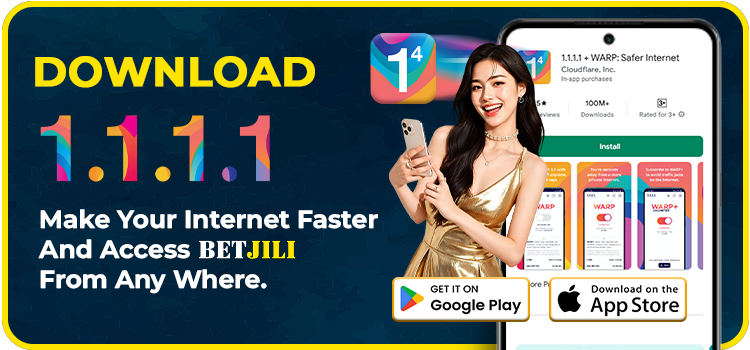
Use this guide to download and begin using the 1.1.1.1 WARP
Android Devices
➤ Launch the Google Play Store
- Search for “1.1.1.1 + WARP: Safer Internet”. Or just “ Click Here ” to open the download page of 1.1.1.1 WARP.
➤ Install the App
- Press the “Install” button. Open the application once installation finishes.
➤ Configure Initial Setup
- An initial welcome screen appears. Select “Next”. Carefully read the privacy policy, then press “Accept”.
- Choose “Install VPN Profile” on the prompt, followed by “OK.”
➤ Activate WARP
- Activate the service by toggling WARP to “Connected”.
iOS (iPhone or iPad)
➤ Open the App Store
- Find “1.1.1.1 + WARP: Safer Internet” via search. Or just “ Click Here ” to open the download page of 1.1.1.1 WARP.
➤ Install the Application
- Tap “Get” to download and install the application.
➤ Accept Permissions
- Launch the 1.1.1.1 warp app and agree to the privacy terms or conditions of service.
- Select “Install VPN Profile,” then confirm by tapping “OK.”
➤ Enable WARP
- Switch WARP to the “Connected” state to enable the connection.
Operating the 1.1.1.1 WARP
➤ Launch the App
- After installing the app, proceed as follows: Launch the 1.1.1.1 WARP application.
➤ Activate WARP Mode
- Locate the primary toggle control on the main interface.
- Press it to change from 1.1.1.1 only (basic DNS-only mode) to 1.1.1.1 with WARP.
➤ Benefits of WARP
- WARP encrypts your entire internet traffic, providing superior security and stability – essential for accessing platforms like BetJili.
➤ Confirmation & Activation
- Once the confirmation of “Your internet is private” displays on your device, it means the warp is active.
- Make sure to confirm that the key icon is actively running on your status bar to make sure that it is functioning well.
➤ Secure Access to BetJili
1.1.1.1 WARP Available For Following Devices
If you need guidance, please visit our help page. If this does not resolve your query, contact our 24/7 customer support team for additional assistance. You can also email us at support.ph@betjili.com, and we will get back to you as soon as possible.
Here are some common reasons why you might be having trouble installing the BetJili app on your phone, along with solutions for each issue:
- Compatibility Issues
Problem: Your device may not meet the app’s minimum requirements.
Solution: Ensure your device is running Android 5.0 or higher. If you’re using an older version of Android, consider updating your operating system.
- Incorrect Download Source
Problem: You might not be downloading the app from the official source or from any unknown sources.
Solution: Make sure to download the BetJili app directly from the official link provided on our website or from official affiliate links provided.
- Network Issues
Problem: A weak or unstable internet connection can cause installation problems.
Solution: Ensure you have a stable internet connection while downloading and installing the app. If you are unsure of your internet speed, try downloading it once and if you are unable to, change your internet source and try again.
This is how you can find the IP address of your device:
- Find Your IP Address:
- On Mobile/Tablet/PC:
- Open your browser and go to whatismyipaddress.com.
- Your IP address will be displayed at the top of the page.
Here are the ways how you can find all the related information needed:
For iPhone/iPad:
- Go to Settings > General > About.
- View the details such as:
- Model Name and Number
- Software Version
- Serial Number
- IMEI Number (if needed later)
For Android Phones/Tablets:
- Go to Settings > About Phone/Tablet.
- Find information including:
- Model Number
- Android Version
- Build Number (for advanced details)
If you find that clicking on our site redirects you to a different website, you can manually correct the local DNS settings by following these simple steps:
- Open Network Settings
- Click the [Start] button at the bottom left of your screen.
- Select [Settings] > [Network & Internet].
- Click [Network and Sharing Center].
- Access Network Connections
- Click on [Change adapter settings].
- Open Network Connection Properties
- Right-click your active network connection and select [Properties] from the menu.
- Modify TCP/IPv4 Settings
- Choose [Internet Protocol Version 4 (TCP/IPv4)] and click [Properties].
- Set DNS Server Addresses
- Select [Use the following DNS server addresses].
- Enter [8.8.8.8] as the Preferred DNS server.
- Enter [8.8.4.4] as the Alternate DNS server.
Click [OK] to apply the changes.
If you encounter any issues with your game, please reach out to our 24/7 customer service team via live chat or email. To help us assist you more efficiently, please include the following details in your message:
- Username: Your account username
- Game Description: Brief description of the issue
- Game Name: The name of the game you were playing
- Bet ID: Your unique bet reference number
- Bet Amount: The amount you wagered
- Bet Time: The date and time when you placed the bet
Providing these details will help us resolve your issue as quickly as possible.