Here are the ways how you can find all the related information needed:
For iPhone/iPad:
- Go to Settings > General > About.
- View the details, such as
- Model Name and Number
- Software Version
- Serial Number
- IMEI Number (if needed later)
For Android Phones/Tablets:
- Go to Settings > About Phone/Tablet.
- Find information including:
- Model Number
- Android Version
- Build Number (for advanced details)
This is how you can find the IP address of your device:
- Find Your IP Address:
Currently, our app is not listed on Google Play. However, you can download it directly through the link below.
Yes, the BetJili app is completely free to Download and use. There are no installation or sign-up fees involved.
Here’s how you can download and install the BetJili app on your Android.
ID phone:
- Log in to your BetJili account through our website.
- Click on your profile and select “Download” from the menu.
- Tap “Android Download” to start the process.
- Once downloaded, open the file and complete the installation by following the prompts.
If you encounter any issues with your game, please reach out to our 24/7 customer service team via live chat or email. To help us assist you more efficiently, please include the following details in your message:
- Username: Your account username
- Game Description: Brief description of the issue
- Game Name: The name of the game you were playing
- Bet ID: Your unique bet reference number
- Bet Amount: The amount you wagered
- Bet Time: The date and time when you placed the bet
Providing these details will help us resolve your issue as quickly as possible.
To clear the cache on your Android device using Chrome, follow these steps:
- Open the Chrome app on your Android phone or tablet.
- Tap the More icon (three vertical dots) at the top right.
- Select History from the menu, then tap on Clear browsing data.
- Choose a time range from the top. For a complete clear, select All time.
- Check the boxes for Cookies, site data and Cached images and files.
- Tap Clear data to finish.
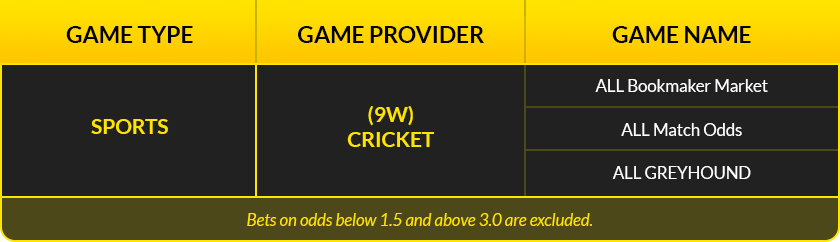
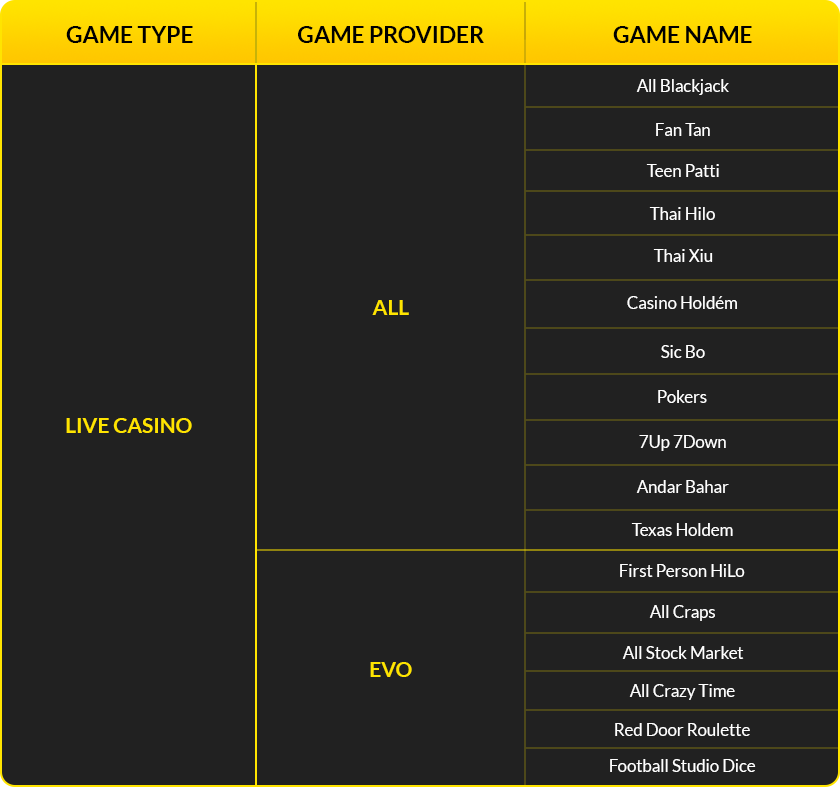
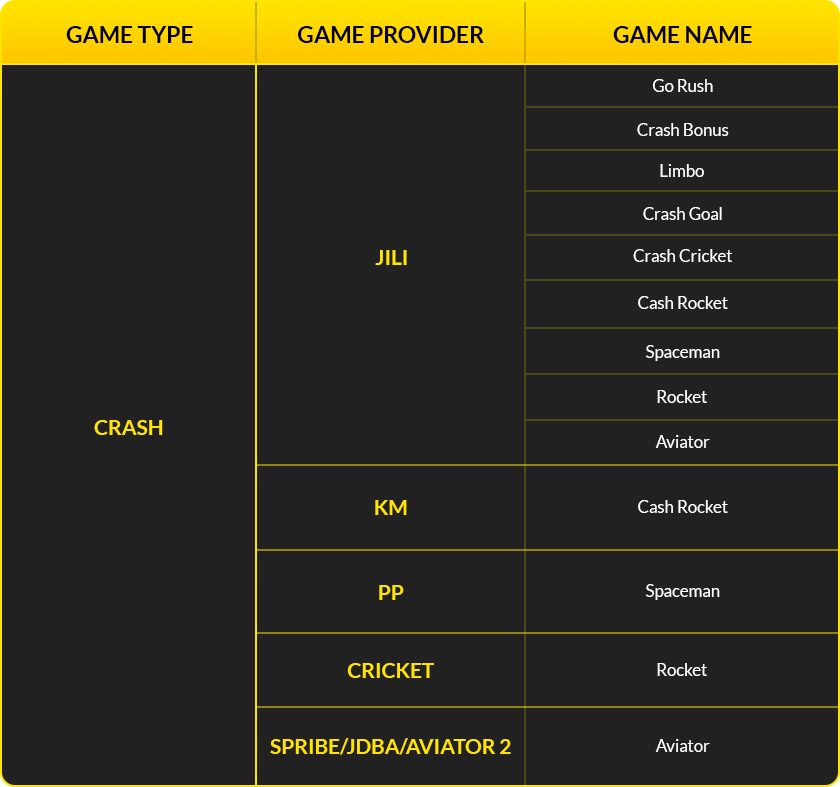
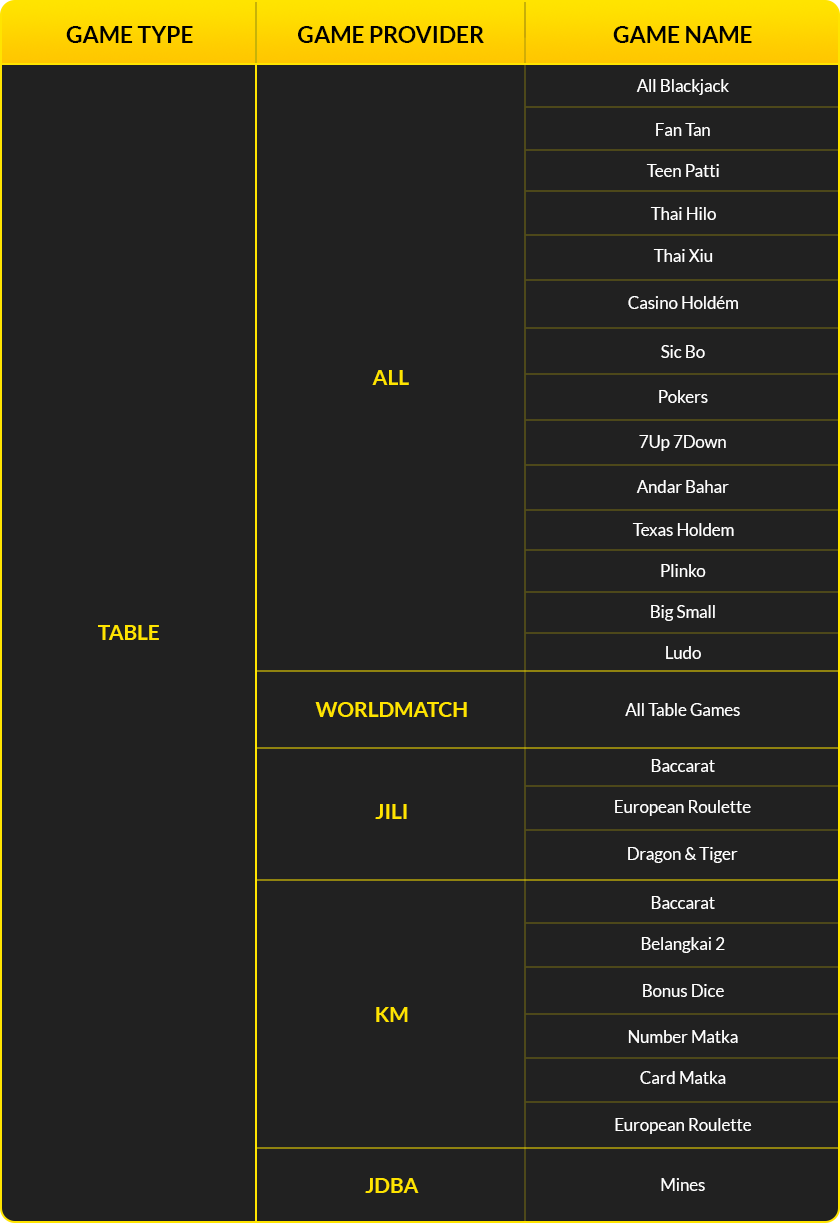
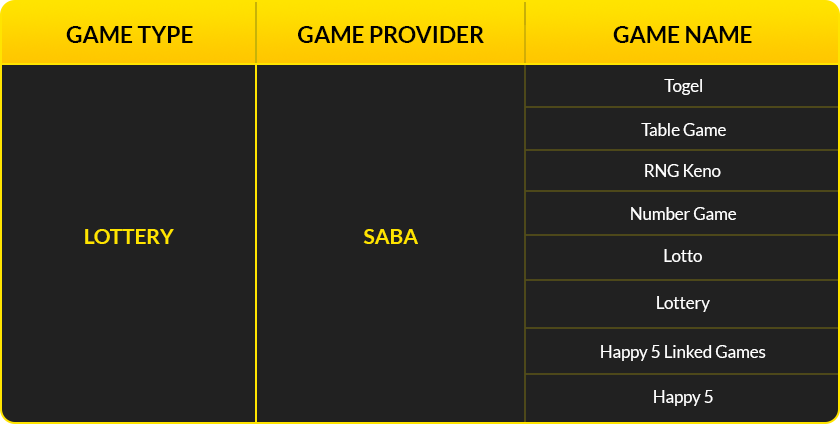
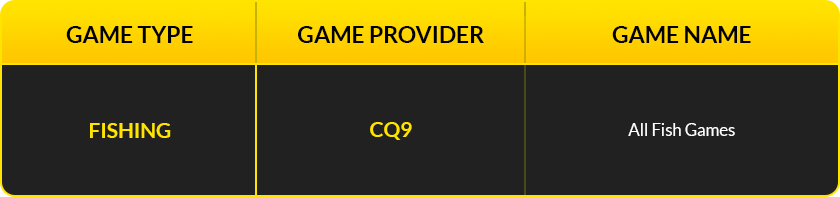
On BetJili, the majority of bets you place can count toward turnover, and bonuses can be used in multiple games. However, there are a few exceptions. In order to stop unfair advantage and preserve integrity, such games are kept out of bonus wagering.
Detailed list of games excluded from bonus wagering:
The BetJili App file size is only around 7.3 MB, and you can easily download it to even phones with low storage capacity.
Click Here to Download BetJili App


